library(tidyverse)
library(readxl)
library(janitor)2 Data Manipulation
In this chapter, we will explore the data, prepare subsets with selected variables and filter them to a few defined cases. We will prepare new variables and rearrange the data according to them. We will further train on importing and exporting the data.
Again, we will use the data from the training project that you downloaded in Chapter 1. Before you start, I recommend creating a new script for this chapter and clearing objects from the workspace (use the broom icon to clean your working environment).
2.1. Introducing dplyr
The term data manipulation might sound a bit tricky. However, it does not mean we plan to show you how to cheat and get better results. It simply means we want to show you how to easily handle the data and prepare it in the form you need. The functions for basic data handling, namely select(), filter(), mutate(), arrange(), and slice(), are provided by the tidyverse package dplyr. Do you remember how to find out more about the package? If nothing else, you can try ?dplyr, which actually gives you more hints on where to look further.
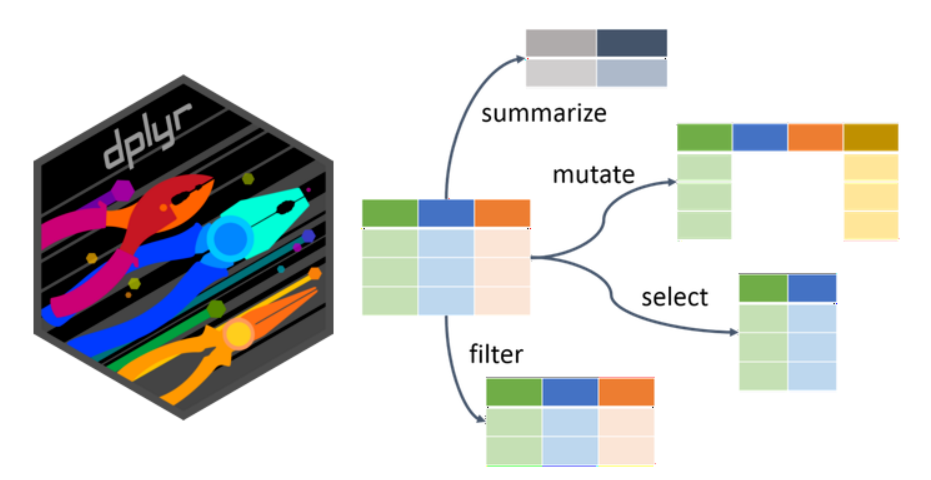
Note that many of these operations can also be performed in some table editors (e.g., Excel) before importing to R. However, the effort and time demands would be significantly higher and would increase enormously with the size of the dataset. In contrast, in R, you can modify and rerun the steps in a single pipeline, and the data will be immediately ready for the following analysis.
We will need the following libraries:
And the forest understory dataset. Again, we will import the data just once and use the pipe to test the
functions/effects without actually changing the data:
data <- read_csv("data/forest_understory/Axmanova-Forest-understory-diversity-analyses.csv")Rows: 65 Columns: 22
── Column specification ────────────────────────────────────────────────────────
Delimiter: ","
chr (1): ForestTypeName
dbl (21): PlotID, ForestType, Herbs, Juveniles, CoverE1, Biomass, Soil_depth...
ℹ Use `spec()` to retrieve the full column specification for this data.
ℹ Specify the column types or set `show_col_types = FALSE` to quiet this message.names(data) [1] "PlotID" "ForestType" "ForestTypeName" "Herbs"
[5] "Juveniles" "CoverE1" "Biomass" "Soil_depth_categ"
[9] "pH_KCl" "Slope" "Altitude" "Canopy_E3"
[13] "Radiation" "Heat" "TransDir" "TransDif"
[17] "TransTot" "EIV_light" "EIV_moisture" "EIV_soilreaction"
[21] "EIV_nutrients" "TWI" 2.2 select()
select() extracts columns/variables based on their names or position. It is essential to understand the distinction between select() and filter(). select() is used to select variables (columns) we want to keep in the dataset, while filter() applies to rows depending on their values.
You can select variables by name. Here, you would appreciate the tidy style of names! Tidy names mean no need to use parentheses :-).
data %>%
  select(PlotID, ForestType, ForestTypeName)
# A tibble: 65 × 3
PlotID ForestType ForestTypeName
<dbl> <dbl> <chr>
1 1 2 oak hornbeam forest
2 2 1 oak forest
3 3 1 oak forest
4 4 1 oak forest
5 5 1 oak forest
6 6 1 oak forest
7 7 1 oak forest
8 8 2 oak hornbeam forest
9 9 2 oak hornbeam forest
10 10 1 oak forest
# ℹ 55 more rowsYou can also select by position. However, if you make any changes to the data, it might not work as you need.
data %>%
  select(1:3)
# A tibble: 65 × 3
PlotID ForestType ForestTypeName
<dbl> <dbl> <chr>
1 1 2 oak hornbeam forest
2 2 1 oak forest
3 3 1 oak forest
4 4 1 oak forest
5 5 1 oak forest
6 6 1 oak forest
7 7 1 oak forest
8 8 2 oak hornbeam forest
9 9 2 oak hornbeam forest
10 10 1 oak forest
# ℹ 55 more rowsSometimes, you decide you want to get rid of some variables. Either name all the others that you want to keep, or remove the unwanted ones with a minus sign. In the case of just one variable, it is easy: select(-xx). If you want to exclude two or more, you have to use select(-c(xx, xy)).
data %>%
  select(-c(ForestType, ForestTypeName))
# A tibble: 65 × 20
PlotID Herbs Juveniles CoverE1 Biomass Soil_depth_categ pH_KCl Slope Altitude
<dbl> <dbl> <dbl> <dbl> <dbl> <dbl> <dbl> <dbl> <dbl>
1 1 26 12 20 12.8 5 5.28 4 412
2 2 13 3 25 9.9 4.5 3.24 24 458
3 3 14 1 25 15.2 3 4.01 13 414
4 4 15 5 30 16 3 3.77 21 379
5 5 13 1 35 20.7 3 3.5 0 374
6 6 16 3 60 46.4 6 3.8 10 380
7 7 17 5 70 49.2 7 3.48 6 373
8 8 21 1 70 48.7 5 3.68 0 390
9 9 15 4 15 13.8 3.5 4.24 38 255
10 10 14 4 75 79.1 5 4.01 13 340
# ℹ 55 more rows
# ℹ 11 more variables: Canopy_E3 <dbl>, Radiation <dbl>, Heat <dbl>,
# TransDir <dbl>, TransDif <dbl>, TransTot <dbl>, EIV_light <dbl>,
# EIV_moisture <dbl>, EIV_soilreaction <dbl>, EIV_nutrients <dbl>, TWI <dbl>You can also define a range of variables between two of them.
data %>%
  select(PlotID:ForestTypeName)
# A tibble: 65 × 3
PlotID ForestType ForestTypeName
<dbl> <dbl> <chr>
1 1 2 oak hornbeam forest
2 2 1 oak forest
3 3 1 oak forest
4 4 1 oak forest
5 5 1 oak forest
6 6 1 oak forest
7 7 1 oak forest
8 8 2 oak hornbeam forest
9 9 2 oak hornbeam forest
10 10 1 oak forest
# ℹ 55 more rowsOr you can combine the approaches listed above:
data %>%
  select (PlotID, 3:6)
# A tibble: 65 × 5
PlotID ForestTypeName Herbs Juveniles CoverE1
<dbl> <chr> <dbl> <dbl> <dbl>
1 1 oak hornbeam forest 26 12 20
2 2 oak forest 13 3 25
3 3 oak forest 14 1 25
4 4 oak forest 15 5 30
5 5 oak forest 13 1 35
6 6 oak forest 16 3 60
7 7 oak forest 17 5 70
8 8 oak hornbeam forest 21 1 70
9 9 oak hornbeam forest 15 4 15
10 10 oak forest 14 4 75
# ℹ 55 more rowsselect() can also be used in combination with functions from the stringr package to identify a specific pattern in the names. Try several options: starts_with(), ends_with() or a more general one, contains().
data %>%
  select (PlotID, starts_with("EIV"))
# A tibble: 65 × 5
PlotID EIV_light EIV_moisture EIV_soilreaction EIV_nutrients
<dbl> <dbl> <dbl> <dbl> <dbl>
1 1 5 4.38 6.68 4.31
2 2 4.71 4.64 4.67 3.69
3 3 4.36 4.7 4.8 3.55
4 4 5.26 4.38 5.53 3.56
5 5 6.14 4 5.33 3.46
6 6 6.19 4.35 6.75 5.06
7 7 6.19 4.25 6.09 4.33
8 8 5.29 4.6 5.07 4.12
9 9 5.47 4.36 5.46 3.5
10 10 6.53 3.86 6 3
# ℹ 55 more rowsselect() can effectively help you organise the data. Imagine you have a workflow where you need only some variables, but in a specific sequence. And you import the data from different people or years. By using select() in your script, you can always order the variables in the same way, e.g., SampleID, ForestType, SpeciesNr, Productivity, even during import. You can also rename the variables using select to get exactly what you need. Here, the new name is on the left, as in rename().
data %>%
  select(SampleID = PlotID, ForestCode = ForestType, SpeciesNr = Herbs, Productivity = Biomass)
# A tibble: 65 × 4
SampleID ForestCode SpeciesNr Productivity
<dbl> <dbl> <dbl> <dbl>
1 1 2 26 12.8
2 2 1 13 9.9
3 3 1 14 15.2
4 4 1 15 16
5 5 1 13 20.7
6 6 1 16 46.4
7 7 1 17 49.2
8 8 2 21 48.7
9 9 2 15 13.8
10 10 1 14 79.1
# ℹ 55 more rows2.3 arrange()
This function retains the same variables and reorders the rows according to the values of the selected variables. To view the changes at a glance, we will first select only a few variables in the dataset.
data <- read_csv("data/forest_understory/Axmanova-Forest-understory-diversity-analyses.csv") %>%
  select(PlotID, ForestType, ForestTypeName, Biomass,pH_KCl)
Rows: 65 Columns: 22
── Column specification ────────────────────────────────────────────────────────
Delimiter: ","
chr (1): ForestTypeName
dbl (21): PlotID, ForestType, Herbs, Juveniles, CoverE1, Biomass, Soil_depth...
ℹ Use `spec()` to retrieve the full column specification for this data.
ℹ Specify the column types or set `show_col_types = FALSE` to quiet this message.Now we have decided to arrange the data by Forest type.
data %>%
  arrange(ForestTypeName)
# A tibble: 65 × 5
PlotID ForestType ForestTypeName Biomass pH_KCl
<dbl> <dbl> <chr> <dbl> <dbl>
1 101 4 alluvial forest 91.1 6.67
2 103 4 alluvial forest 114. 7.13
3 104 4 alluvial forest 188. 7.14
4 110 4 alluvial forest 126. 5.82
5 111 4 alluvial forest 84.8 7.01
6 113 4 alluvial forest 74.5 6.61
7 125 4 alluvial forest 123. 4.99
8 127 4 alluvial forest 176 5.56
9 129 4 alluvial forest 100. 5.7
10 131 4 alluvial forest 163. 5.22
# ℹ 55 more rowsWe can also decide to arrange the data from the highest value to the lowest, i.e. in descending order.
data %>%
  arrange(desc(Biomass))
# A tibble: 65 × 5
PlotID ForestType ForestTypeName Biomass pH_KCl
<dbl> <dbl> <chr> <dbl> <dbl>
1 132 4 alluvial forest 287. 5.56
2 130 3 ravine forest 238 5.74
3 104 4 alluvial forest 188. 7.14
4 127 4 alluvial forest 176 5.56
5 131 4 alluvial forest 163. 5.22
6 110 4 alluvial forest 126. 5.82
7 125 4 alluvial forest 123. 4.99
8 128 3 ravine forest 121. 7.03
9 103 4 alluvial forest 114. 7.13
10 124 2 oak hornbeam forest 102. 4.89
# ℹ 55 more rowsOr we can arrange according to more variables. Here, the forest type is listed first, as we have decided it is the most important grouping variable. Within each type, we want to see the rows/cases ordered by biomass values.
data %>%
  arrange(ForestType, ForestTypeName, desc(Biomass)) %>%
  print(n = 30)
# A tibble: 65 × 5
PlotID ForestType ForestTypeName Biomass pH_KCl
<dbl> <dbl> <chr> <dbl> <dbl>
1 10 1 oak forest 79.1 4.01
2 7 1 oak forest 49.2 3.48
3 6 1 oak forest 46.4 3.8
4 44 1 oak forest 34.1 3.5
5 82 1 oak forest 33.9 3.57
6 28 1 oak forest 29.7 3.56
7 42 1 oak forest 21.5 3.53
8 5 1 oak forest 20.7 3.5
9 81 1 oak forest 20.6 4.54
10 4 1 oak forest 16 3.77
11 47 1 oak forest 15.5 3.87
12 3 1 oak forest 15.2 4.01
13 31 1 oak forest 14.9 3.2
14 100 1 oak forest 13.5 3.55
15 2 1 oak forest 9.9 3.24
16 11 1 oak forest 7.4 3.83
17 124 2 oak hornbeam forest 102. 4.89
18 120 2 oak hornbeam forest 98.5 6.42
19 121 2 oak hornbeam forest 84.7 5.77
20 126 2 oak hornbeam forest 72.9 4.88
21 18 2 oak hornbeam forest 72.2 4.62
22 118 2 oak hornbeam forest 66.2 5.32
23 99 2 oak hornbeam forest 64.8 3.79
24 109 2 oak hornbeam forest 60.7 4.77
25 112 2 oak hornbeam forest 58.4 5.76
26 102 2 oak hornbeam forest 57.4 4.4
27 117 2 oak hornbeam forest 54.7 4.86
28 8 2 oak hornbeam forest 48.7 3.68
29 86 2 oak hornbeam forest 46.9 3.74
30 87 2 oak hornbeam forest 42.9 4.15
# ℹ 35 more rowsTo see more rows of the resulting table, we specified their number using the print() function.
2.4 distinct()
distinct() is a function that removes all the duplicate rows, keeping only the unique ones. There are many cases where you will truly appreciate this elegant and effortless approach. For example, we want a list of unique Plot IDs, unique combinations of two categories, and so on. Here, we aim to compile a list of forest type codes and corresponding names.
data %>%
  arrange(ForestType) %>%
  select(ForestType, ForestTypeName) %>%
  distinct()
# A tibble: 4 × 2
ForestType ForestTypeName
<dbl> <chr>
1 1 oak forest
2 2 oak hornbeam forest
3 3 ravine forest
4 4 alluvial forest The same can also be done if I skip the select tool, because distinct() works more like select() + distinct().
data %>%
  arrange(ForestType) %>%
  distinct(ForestType, ForestTypeName)
# A tibble: 4 × 2
ForestType ForestTypeName
<dbl> <chr>
1 1 oak forest
2 2 oak hornbeam forest
3 3 ravine forest
4 4 alluvial forest Sometimes, distinct() can also be used when importing data to remove duplicate rows that were overlooked previously: data <- read_csv... %>% distinct().
2.5 filter() and slice()
When we have a large dataset, we sometimes need to create a subset of the rows/cases. First, we need to define the variable on which we will filter the rows (e.g., Forest type, soil pH) and determine which values are acceptable and which are not.
In this first example, we use a categorical variable, and we want to match the exact value, so we have to use the EQUAL operator ==.
data %>%
  filter(ForestTypeName == "alluvial forest")
# A tibble: 11 × 5
PlotID ForestType ForestTypeName Biomass pH_KCl
<dbl> <dbl> <chr> <dbl> <dbl>
1 101 4 alluvial forest 91.1 6.67
2 103 4 alluvial forest 114. 7.13
3 104 4 alluvial forest 188. 7.14
4 110 4 alluvial forest 126. 5.82
5 111 4 alluvial forest 84.8 7.01
6 113 4 alluvial forest 74.5 6.61
7 125 4 alluvial forest 123. 4.99
8 127 4 alluvial forest 176 5.56
9 129 4 alluvial forest 100. 5.7
10 131 4 alluvial forest 163. 5.22
11 132 4 alluvial forest 287. 5.56Or we might define a list of values, especially for categorical variables. The filter function will try to find rows with values exactly matching those %in% the list.
data %>%
  filter(ForestTypeName %in% c("alluvial forest", "ravine forest"))
# A tibble: 21 × 5
PlotID ForestType ForestTypeName Biomass pH_KCl
<dbl> <dbl> <chr> <dbl> <dbl>
1 101 4 alluvial forest 91.1 6.67
2 103 4 alluvial forest 114. 7.13
3 104 4 alluvial forest 188. 7.14
4 105 3 ravine forest 65.5 6.78
5 106 3 ravine forest 33.6 3.7
6 108 3 ravine forest 82.3 4.17
7 110 4 alluvial forest 126. 5.82
8 111 4 alluvial forest 84.8 7.01
9 113 4 alluvial forest 74.5 6.61
10 114 3 ravine forest 71.5 6.93
# ℹ 11 more rowsWhen filtering a continuous variable, we can work with thresholds. For example, here the biomass of the herb layer is measured in g/m2, and we want only those rows/cases where the biomass values are higher than 80.
data %>%
  filter(Biomass > 80) #[g/m2]
# A tibble: 17 × 5
PlotID ForestType ForestTypeName Biomass pH_KCl
<dbl> <dbl> <chr> <dbl> <dbl>
1 101 4 alluvial forest 91.1 6.67
2 103 4 alluvial forest 114. 7.13
3 104 4 alluvial forest 188. 7.14
4 108 3 ravine forest 82.3 4.17
5 110 4 alluvial forest 126. 5.82
6 111 4 alluvial forest 84.8 7.01
7 120 2 oak hornbeam forest 98.5 6.42
8 121 2 oak hornbeam forest 84.7 5.77
9 122 3 ravine forest 102. 6.68
10 124 2 oak hornbeam forest 102. 4.89
11 125 4 alluvial forest 123. 4.99
12 127 4 alluvial forest 176 5.56
13 128 3 ravine forest 121. 7.03
14 129 4 alluvial forest 100. 5.7
15 130 3 ravine forest 238 5.74
16 131 4 alluvial forest 163. 5.22
17 132 4 alluvial forest 287. 5.56You can also filter plots within a specified range and apply multiple conditions. Here, we select all plots of the specified types and use a further condition to include only those with biomass above the specified level.
All of the conditions need to be valid for the case to be included in the selection, because we included the AND operator &.
data %>%
  filter((ForestTypeName %in% c("alluvial forest", "ravine forest") &
    (Biomass >= 80))) %>%
      arrange(desc(Biomass))
# A tibble: 14 × 5
PlotID ForestType ForestTypeName Biomass pH_KCl
<dbl> <dbl> <chr> <dbl> <dbl>
1 132 4 alluvial forest 287. 5.56
2 130 3 ravine forest 238 5.74
3 104 4 alluvial forest 188. 7.14
4 127 4 alluvial forest 176 5.56
5 131 4 alluvial forest 163. 5.22
6 110 4 alluvial forest 126. 5.82
7 125 4 alluvial forest 123. 4.99
8 128 3 ravine forest 121. 7.03
9 103 4 alluvial forest 114. 7.13
10 122 3 ravine forest 102. 6.68
11 129 4 alluvial forest 100. 5.7
12 101 4 alluvial forest 91.1 6.67
13 111 4 alluvial forest 84.8 7.01
14 108 3 ravine forest 82.3 4.17Here we use the same approach, but specify conditions for three variables at once.
data %>% filter(ForestTypeName =="oak forest" & pH_KCl >=4 & Biomass>20)# A tibble: 2 × 5
PlotID ForestType ForestTypeName Biomass pH_KCl
<dbl> <dbl> <chr> <dbl> <dbl>
1 10 1 oak forest 79.1 4.01
2 81 1 oak forest 20.6 4.54We can also use the operator OR (|) between the two conditions. This means that we will include the case where either one or the other condition is met. For example, either high herb-layer biomass or high pH, which are two different ways to estimate a relatively productive forest site.
data %>% filter(Biomass>90 | pH_KCl>6)# A tibble: 21 × 5
PlotID ForestType ForestTypeName Biomass pH_KCl
<dbl> <dbl> <chr> <dbl> <dbl>
1 101 4 alluvial forest 91.1 6.67
2 103 4 alluvial forest 114. 7.13
3 104 4 alluvial forest 188. 7.14
4 105 3 ravine forest 65.5 6.78
5 110 4 alluvial forest 126. 5.82
6 111 4 alluvial forest 84.8 7.01
7 113 4 alluvial forest 74.5 6.61
8 114 3 ravine forest 71.5 6.93
9 115 3 ravine forest 54.6 6.03
10 119 2 oak hornbeam forest 36.6 6.63
# ℹ 11 more rowsWe can combine AND and OR also in one filter step. For example, we want to keep only plots with biomass in the range of 40–80 g/m², but we also want to keep plots without any value (NA).
data %>%
  filter((Biomass >= 40 & Biomass <= 80) | is.na(Biomass))
# A tibble: 20 × 5
PlotID ForestType ForestTypeName Biomass pH_KCl
<dbl> <dbl> <chr> <dbl> <dbl>
1 6 1 oak forest 46.4 3.8
2 7 1 oak forest 49.2 3.48
3 8 2 oak hornbeam forest 48.7 3.68
4 10 1 oak forest 79.1 4.01
5 18 2 oak hornbeam forest 72.2 4.62
6 86 2 oak hornbeam forest 46.9 3.74
7 87 2 oak hornbeam forest 42.9 4.15
8 99 2 oak hornbeam forest 64.8 3.79
9 102 2 oak hornbeam forest 57.4 4.4
10 105 3 ravine forest 65.5 6.78
11 109 2 oak hornbeam forest 60.7 4.77
12 112 2 oak hornbeam forest 58.4 5.76
13 113 4 alluvial forest 74.5 6.61
14 114 3 ravine forest 71.5 6.93
15 115 3 ravine forest 54.6 6.03
16 116 3 ravine forest 64.5 5
17 117 2 oak hornbeam forest 54.7 4.86
18 118 2 oak hornbeam forest 66.2 5.32
19 123 3 ravine forest 53.6 6.91
20 126 2 oak hornbeam forest 72.9 4.88Sometimes you might find it useful to filter something out, rather than specifying what should stay. This is indicated by the exclamation mark, as shown below.
data <- read_csv("data/forest_understory/Axmanova-Forest-understory-diversity-analyses.csv") Rows: 65 Columns: 22
── Column specification ────────────────────────────────────────────────────────
Delimiter: ","
chr (1): ForestTypeName
dbl (21): PlotID, ForestType, Herbs, Juveniles, CoverE1, Biomass, Soil_depth...
ℹ Use `spec()` to retrieve the full column specification for this data.
ℹ Specify the column types or set `show_col_types = FALSE` to quiet this message.data %>%
filter(!is.na(Juveniles))# A tibble: 65 × 22
PlotID ForestType ForestTypeName Herbs Juveniles CoverE1 Biomass
<dbl> <dbl> <chr> <dbl> <dbl> <dbl> <dbl>
1 1 2 oak hornbeam forest 26 12 20 12.8
2 2 1 oak forest 13 3 25 9.9
3 3 1 oak forest 14 1 25 15.2
4 4 1 oak forest 15 5 30 16
5 5 1 oak forest 13 1 35 20.7
6 6 1 oak forest 16 3 60 46.4
7 7 1 oak forest 17 5 70 49.2
8 8 2 oak hornbeam forest 21 1 70 48.7
9 9 2 oak hornbeam forest 15 4 15 13.8
10 10 1 oak forest 14 4 75 79.1
# ℹ 55 more rows
# ℹ 15 more variables: Soil_depth_categ <dbl>, pH_KCl <dbl>, Slope <dbl>,
# Altitude <dbl>, Canopy_E3 <dbl>, Radiation <dbl>, Heat <dbl>,
# TransDir <dbl>, TransDif <dbl>, TransTot <dbl>, EIV_light <dbl>,
# EIV_moisture <dbl>, EIV_soilreaction <dbl>, EIV_nutrients <dbl>, TWI <dbl>A specific alternative to filter() is the slice() function. Let’s say I want to get the top 3 rows/cases/vegetation samples with the highest numbers of recorded juveniles. So, we can arrange the values, determine the threshold and filter the values above it. Or we can use slice_max() to do the job for us.
data %>%
filter(!is.na(Juveniles)) %>%
slice_max(Juveniles, n = 3) # A tibble: 3 × 22
PlotID ForestType ForestTypeName Herbs Juveniles CoverE1 Biomass
<dbl> <dbl> <chr> <dbl> <dbl> <dbl> <dbl>
1 124 2 oak hornbeam forest 34 15 75 102.
2 112 2 oak hornbeam forest 32 14 60 58.4
3 119 2 oak hornbeam forest 63 14 50 36.6
# ℹ 15 more variables: Soil_depth_categ <dbl>, pH_KCl <dbl>, Slope <dbl>,
# Altitude <dbl>, Canopy_E3 <dbl>, Radiation <dbl>, Heat <dbl>,
# TransDir <dbl>, TransDif <dbl>, TransTot <dbl>, EIV_light <dbl>,
# EIV_moisture <dbl>, EIV_soilreaction <dbl>, EIV_nutrients <dbl>, TWI <dbl>Tip: Try slice_min() if you need the lowest values.
Default settings of slice may return more rows than you requested in case there are ties on the given position. Check ?slice_max.
2.6 mutate()
mutate() adds new variables that are functions of existing variables, or it can be used to overwrite original variables according to your specification. Note that in the examples below, select is used only to make the results visible at first sight.
We can use mutate to create new variables based on mathematical operations (e.g. percentage, summed, rounded). For example, in the field, I recorded juveniles of woody plants and all other herb-layer species separately. However, we now want to sum these two values for each row/case/vegetation plot so that we can speak about overall species richness. I create a new variable by simply summing these two (note how easy it is with tidy names!).
data %>%
  mutate(SpeciesRichness = Herbs + Juveniles) %>%
  select(PlotID, SpeciesRichness, Herbs, Juveniles)
# A tibble: 65 × 4
PlotID SpeciesRichness Herbs Juveniles
<dbl> <dbl> <dbl> <dbl>
1 1 38 26 12
2 2 16 13 3
3 3 15 14 1
4 4 20 15 5
5 5 14 13 1
6 6 19 16 3
7 7 22 17 5
8 8 22 21 1
9 9 19 15 4
10 10 18 14 4
# ℹ 55 more rowsSometimes, you want to add a variable where all rows/cases will receive the same value. For example, because you plan to join the data with other data and you want to keep information about the sources or because it is useful for another mutate() step. This is also a straightforward method for converting data with abundances to presence/absence data. Here we create a variable selection which
data %>%
  mutate(selection = 1)%>%
  select(PlotID, selection, ForestType, ForestTypeName)
# A tibble: 65 × 4
PlotID selection ForestType ForestTypeName
<dbl> <dbl> <dbl> <chr>
1 1 1 2 oak hornbeam forest
2 2 1 1 oak forest
3 3 1 1 oak forest
4 4 1 1 oak forest
5 5 1 1 oak forest
6 6 1 1 oak forest
7 7 1 1 oak forest
8 8 1 2 oak hornbeam forest
9 9 1 2 oak hornbeam forest
10 10 1 1 oak forest
# ℹ 55 more rowsYou can also create a variable with more categories based on the values of other variables using ifelse() inside mutate(). You give the condition for when it should be called ‘low’ and what to do if the condition is not met - name it ‘high’.
data %>%
  mutate(Productivity = ifelse(Biomass<=60,"low","high")) %>%
  select (PlotID, ForestTypeName, Productivity, Biomass) %>%
  print(n=20)
# A tibble: 65 × 4
PlotID ForestTypeName Productivity Biomass
<dbl> <chr> <chr> <dbl>
1 1 oak hornbeam forest low 12.8
2 2 oak forest low 9.9
3 3 oak forest low 15.2
4 4 oak forest low 16
5 5 oak forest low 20.7
6 6 oak forest low 46.4
7 7 oak forest low 49.2
8 8 oak hornbeam forest low 48.7
9 9 oak hornbeam forest low 13.8
10 10 oak forest high 79.1
11 11 oak forest low 7.4
12 14 oak hornbeam forest low 14.2
13 16 oak hornbeam forest low 26.2
14 18 oak hornbeam forest high 72.2
15 28 oak forest low 29.7
16 29 oak hornbeam forest low 37.9
17 31 oak forest low 14.9
18 32 oak hornbeam forest low 19.2
19 36 oak hornbeam forest low 3.3
20 41 oak hornbeam forest low 26.9
# ℹ 45 more rowsThe same can be done with a similar approach using case_when(). Conditions are evaluated from the first (on the left) to the last (on the right side), so for each step, you take only the rows that are not yet treated by the previous condition.
data %>%
  mutate(Productivity = case_when(
    Biomass <= 60 ~ "low",
    Biomass > 60 ~ "high")) %>%
  select(PlotID, ForestTypeName, Productivity, Biomass) %>%
  print(n = 20)
# A tibble: 65 × 4
PlotID ForestTypeName Productivity Biomass
<dbl> <chr> <chr> <dbl>
1 1 oak hornbeam forest low 12.8
2 2 oak forest low 9.9
3 3 oak forest low 15.2
4 4 oak forest low 16
5 5 oak forest low 20.7
6 6 oak forest low 46.4
7 7 oak forest low 49.2
8 8 oak hornbeam forest low 48.7
9 9 oak hornbeam forest low 13.8
10 10 oak forest high 79.1
11 11 oak forest low 7.4
12 14 oak hornbeam forest low 14.2
13 16 oak hornbeam forest low 26.2
14 18 oak hornbeam forest high 72.2
15 28 oak forest low 29.7
16 29 oak hornbeam forest low 37.9
17 31 oak forest low 14.9
18 32 oak hornbeam forest low 19.2
19 36 oak hornbeam forest low 3.3
20 41 oak hornbeam forest low 26.9
# ℹ 45 more rowsTip: Inside ‘Condition’, you can also use other conditional operators, like AND (&), OR (|), or EQUAL (==).
We can set conditions to define one category and then specify what should happen with the rest (cases not fulfilling the above conditions). For example, here I define the conditions for the selection category “yes”, and the rest will be “no” without any need for other definitions of this second group; this is done by using the argument TRUE ~ .
data %>% mutate(Selection = case_when(
  Biomass>80 & ForestTypeName =="aluvial forest" ~ "yes",
  TRUE ~"no"))
# A tibble: 65 × 23
PlotID ForestType ForestTypeName Herbs Juveniles CoverE1 Biomass
<dbl> <dbl> <chr> <dbl> <dbl> <dbl> <dbl>
1 1 2 oak hornbeam forest 26 12 20 12.8
2 2 1 oak forest 13 3 25 9.9
3 3 1 oak forest 14 1 25 15.2
4 4 1 oak forest 15 5 30 16
5 5 1 oak forest 13 1 35 20.7
6 6 1 oak forest 16 3 60 46.4
7 7 1 oak forest 17 5 70 49.2
8 8 2 oak hornbeam forest 21 1 70 48.7
9 9 2 oak hornbeam forest 15 4 15 13.8
10 10 1 oak forest 14 4 75 79.1
# ℹ 55 more rows
# ℹ 16 more variables: Soil_depth_categ <dbl>, pH_KCl <dbl>, Slope <dbl>,
# Altitude <dbl>, Canopy_E3 <dbl>, Radiation <dbl>, Heat <dbl>,
# TransDir <dbl>, TransDif <dbl>, TransTot <dbl>, EIV_light <dbl>,
# EIV_moisture <dbl>, EIV_soilreaction <dbl>, EIV_nutrients <dbl>, TWI <dbl>,
# Selection <chr>We often use mutate() to transform original values directly. This is also useful for fixing some issues that we do not want to or cannot change in the original source data. In the example below, I will just change the names of the categories. Check with view () if the other categories correspond to the original ones.
data %>% distinct(ForestTypeName)# A tibble: 4 × 1
ForestTypeName
<chr>
1 oak hornbeam forest
2 oak forest
3 alluvial forest
4 ravine forest data %>%
select(PlotID, ForestTypeName,Biomass) %>%
arrange(ForestTypeName) %>%
mutate(ForestTypeName_corrected = case_when(
ForestTypeName=="alluvial forest" ~ "alder forest",
TRUE ~ ForestTypeName))# A tibble: 65 × 4
PlotID ForestTypeName Biomass ForestTypeName_corrected
<dbl> <chr> <dbl> <chr>
1 101 alluvial forest 91.1 alder forest
2 103 alluvial forest 114. alder forest
3 104 alluvial forest 188. alder forest
4 110 alluvial forest 126. alder forest
5 111 alluvial forest 84.8 alder forest
6 113 alluvial forest 74.5 alder forest
7 125 alluvial forest 123. alder forest
8 127 alluvial forest 176 alder forest
9 129 alluvial forest 100. alder forest
10 131 alluvial forest 163. alder forest
# ℹ 55 more rowsNow you can use the same lines, but use mutate directly to change the ForestTypeName.
data %>%
  select(PlotID, ForestTypeName,Biomass) %>%
  arrange(ForestTypeName) %>%
  mutate(ForestTypeName = case_when(
  ForestTypeName=="alluvial forest" ~ "alder forest",
  TRUE ~ ForestTypeName))
# A tibble: 65 × 3
PlotID ForestTypeName Biomass
<dbl> <chr> <dbl>
1 101 alder forest 91.1
2 103 alder forest 114.
3 104 alder forest 188.
4 110 alder forest 126.
5 111 alder forest 84.8
6 113 alder forest 74.5
7 125 alder forest 123.
8 127 alder forest 176
9 129 alder forest 100.
10 131 alder forest 163.
# ℹ 55 more rowsOne of the examples is to change the type of the variable, e.g. from numeric to character. To work with multiple variables at once, e.g., round them, we can use mutate(across()) and specify the function. .x refers to the entire column (vector) being transformed inside a function like mutate(across(...)) or map().
data %>%
  mutate(across(c(Biomass, pH_KCl), ~ round(.x, digits = 1))) %>%
  select(PlotID, Biomass, pH_KCl)
# A tibble: 65 × 3
PlotID Biomass pH_KCl
<dbl> <dbl> <dbl>
1 1 12.8 5.3
2 2 9.9 3.2
3 3 15.2 4
4 4 16 3.8
5 5 20.7 3.5
6 6 46.4 3.8
7 7 49.2 3.5
8 8 48.7 3.7
9 9 13.8 4.2
10 10 79.1 4
# ℹ 55 more rowsOr you can even list all the functions you want to apply at once.
data %>%
  select(PlotID, Biomass, pH_KCl) %>%
  mutate(across(
    c(Biomass, pH_KCl),
    list(round = ~ round(.x, 1),
         log = log,
         sqrt = sqrt)))
# A tibble: 65 × 9
PlotID Biomass pH_KCl Biomass_round Biomass_log Biomass_sqrt pH_KCl_round
<dbl> <dbl> <dbl> <dbl> <dbl> <dbl> <dbl>
1 1 12.8 5.28 12.8 2.55 3.58 5.3
2 2 9.9 3.24 9.9 2.29 3.15 3.2
3 3 15.2 4.01 15.2 2.72 3.90 4
4 4 16 3.77 16 2.77 4 3.8
5 5 20.7 3.5 20.7 3.03 4.55 3.5
6 6 46.4 3.8 46.4 3.84 6.81 3.8
7 7 49.2 3.48 49.2 3.90 7.01 3.5
8 8 48.7 3.68 48.7 3.89 6.98 3.7
9 9 13.8 4.24 13.8 2.62 3.71 4.2
10 10 79.1 4.01 79.1 4.37 8.89 4
# ℹ 55 more rows
# ℹ 2 more variables: pH_KCl_log <dbl>, pH_KCl_sqrt <dbl>2.7 Save the data
If you decide that you have already prepared the dataset in the form it should be used later, you probably need to save it and export, e.g. as a csv. Remember that we were primarily trying to see what it would look like with the %>%, so you must either assign the dataset to a new object or add the write command at the end of the pipeline. See also Chapter 1.
Here we will play a bit with the tidyverse package readr. You can find out more in the readr cheatsheet. In the examples below, you are saving the data in the folder “chapter2”, which you need to create first. Try to create it directly in the R studio through the Files.
Write a comma-delimited file:
write_csv(data, "results/chapter2/forest_selected1.csv") Note that you can save the data directly from the pipeline - just add it as another step and skip the “data” argument:
data %>%
  select(PlotID, Biomass, pH_KCl) %>%
  mutate(across(
    c(Biomass, pH_KCl),
    list(round = ~ round(.x, 1),
         log = log,
         sqrt = sqrt))) %>%
  write_csv("results/chapter2/forest_selected1.csv")
Write a semicolon-delimited file (;):
write_csv2(data, "results/chapter2/forest_selected2.csv")Write excel_csv file, which can help you easily open the file in Excel and will keep the encoding you need.
write_excel_csv(data, "results/chapter2/forest_selected3.csv")Note that, in contrast to the write.csv() function, the write_csv() function adheres to the tidyverse philosophy, so row names are not included in the export.
*You can also write directly to an Excel file, for example, using the writexl library.
library(writexl)
write_xlsx(data, 'results/chapter2/forestEnv.xlsx')
To create an xlsx with (multiple) named sheets, you would need to provide a list of data frames. Here, we specify that data1 should be saved as an Excel sheet named forestEnv (environmental data) and data2 as a sheet named forestSpe (species data from the same dataset).
library(writexl)

data1 <- read_excel("data/forest_understory/Axmanova-Forest-understory-diversity-analyses.xlsx")
data2 <- read_excel("data/forest_understory/Axmanova-Forest-spe.xlsx")


write_xlsx(list(forestEnv = data1,
                forestSpe = data2),
           'results/chapter2/forest.xlsx' )
2.8 Exercises
We will mostly use the data from the example project described in the first chapter (section to-do first), or data integrated in the R software packages or data available online.
Tip: If you copy the task descriptions and add them directly to your script, it is simply too long, right? Do you know how to read long lines of text in an R script? Go to “Code” and tick “soft wrap long lines”.
1. Forest Data - data in your project folder. This dataset is used throughout the whole chapter above. Please use it to prepare your own script with remarks, copy and train what is described above.
2. Directly from RStudio, create a folder results/chapter2 for saving today’s datasets, as we will train a bit of exporting of the data.
3. Use the Forest Data to train more. Import it once again with the clean_names function. -> Rename the soil pH variable to soil_ph and biomass to productivity. -> Create variable “author” which will contain the name Axmanova. -> Create variable “richness” by summing the herbs and juveniles. -> Select variables plot_id, author, richness, productivity and soil_ph. -> Save this dataset as a csv file into results/chapter2.
4. Use the Forest dataset again. Find five plots with the lowest biomass from forest types other than oak forests.
5. Select PlotID and all variables that are connected to transmitted light (Trans..) > round these variables.
6. Using case_when() define a new variable called productivity, with three categories: low, medium, and high, with thresholds of x<=60, 60-90, >=90. How many rows/cases are in the category medium?
7. iris dataset: We will use the famous iris dataset of flower measurements. Find out more details by asking R ?iris as the dataset is integrated in R and ready to use. >> Upload the iris dataset into an object using the assignment like this: data <- iris. >> Check the structure of the dataset. Is it stored as a tibble or a data frame? If the latter, you might need to change the format to a tibble first using data%>% as_tibble().>> Now select variables including taxon name and those of length measurements.>> Arrange the data according to Sepal.Length >> Filter 15 rows with the longest sepals. Which species prevails among these top 15? >> *How many rows/cases did you actually get, and do you know why?
8*. squirrel data: Load data of squirrel observations from the Central Park Squirrel Census using this line: read_csv(‘https://raw.githubusercontent.com/rfordatascience/tidytuesday/main/data/2023/2023-05-23/squirrel_data.csv’) >> Check the structure, rename variables to get tidy names >>find out what are the possible colours of fur >> select at least 5 variables, including ID, fur colour, location, … >> Filter squirrels of one fur colour, up to your preference >> Arrange data by location. >> Print at least 30 rows
9*. example4 from messy data folder - Load the data and check the structure of the dataset >> How many rows are there? >> Import the data again and now add the distinct () as a next step in the pipeline >> Check what happened.
2.9 Further reading
dplyr main web page: https://dplyr.tidyverse.org
Find dplyr and readr Cheatsheet in Posit: https://posit.co/resources/cheatsheets/
Chapter devoted to Data transformation in the R for Data Science book: https://r4ds.hadley.nz/data-transform.html
encoding issues during import and export: https://irene.rbind.io/post/encoding-in-r/